Exercise 1: Deploying the Workshop Resources
Estimated time to complete: 15 minutes
Objectives
- Log into AWS account and launch CloudShell session in the N. Virginia (us-east-1) region.
- Download source code using
gitfrom the workshop GitHub repository. - Deploy workshop resources using AWS CloudFormation and verify resources were successfully created.
Challenges
Challenge 1: Launch AWS CloudShell
The exercises performed in this workshop are designed to simply use your web browser - no additional tools (e.g., virtual machines, SSH clients) required! Many cloud vendors allow customers to generate a shell session in a vendor-managed container/VM to perform basic tasks. We will use this to our advantage to deploy resources, perform attacks, and build our detections.
Begin by logging into your AWS account and launch a CloudShell session in the N. Virginia (us-east-1) region.
Solution
-
Navigate to https://console.aws.amazon.com and sign in with either your root user account or an IAM user with AdministratorAccess permissions.
Root User
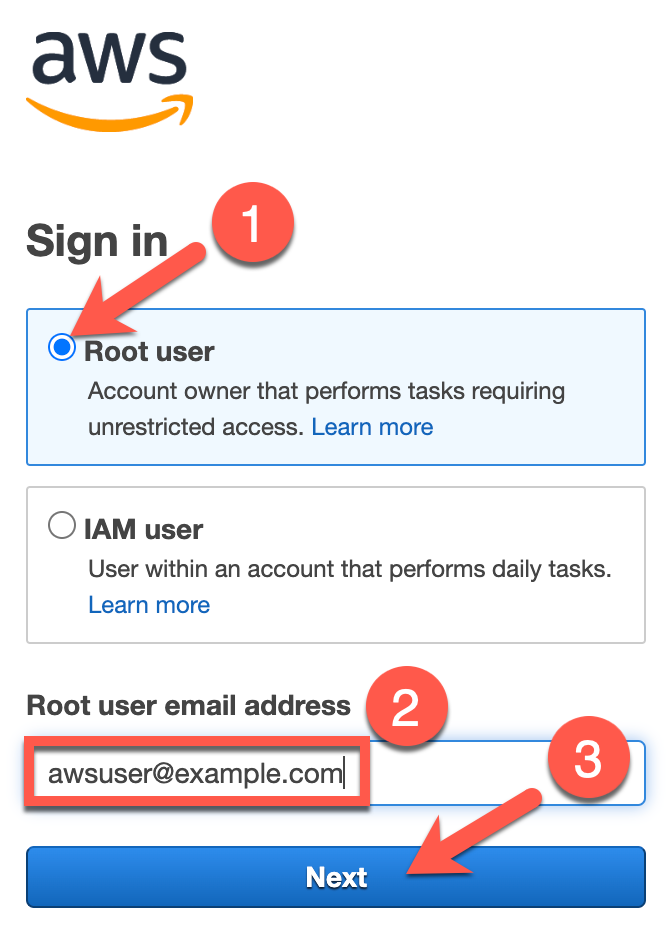
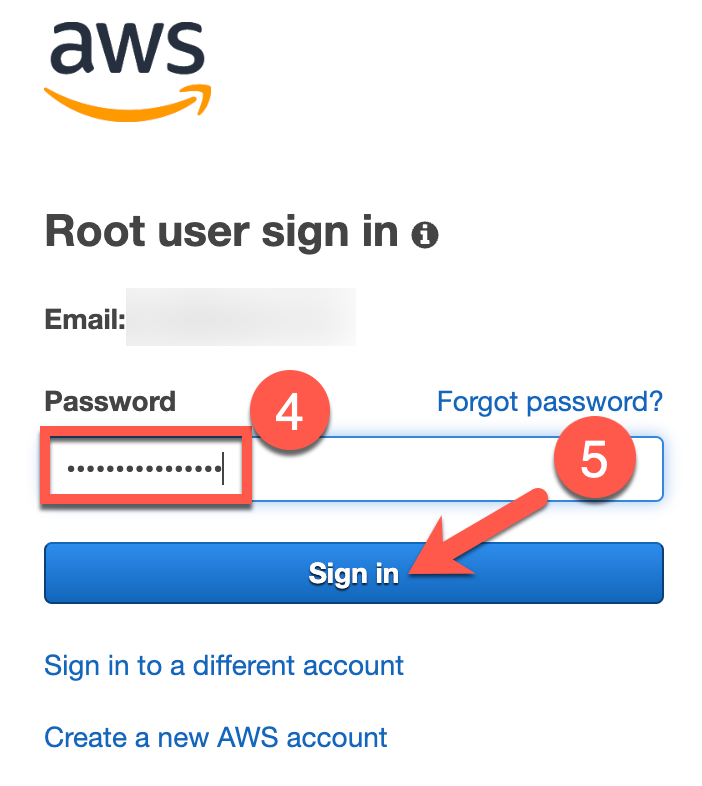
Select the Root user radio button (1), enter your email address used to sign up for AWS in the Root user email address text field (2), and click the Next button (3). On the next page, enter your password in the Password text field (4) and click the Sign in button (5).
IAM User
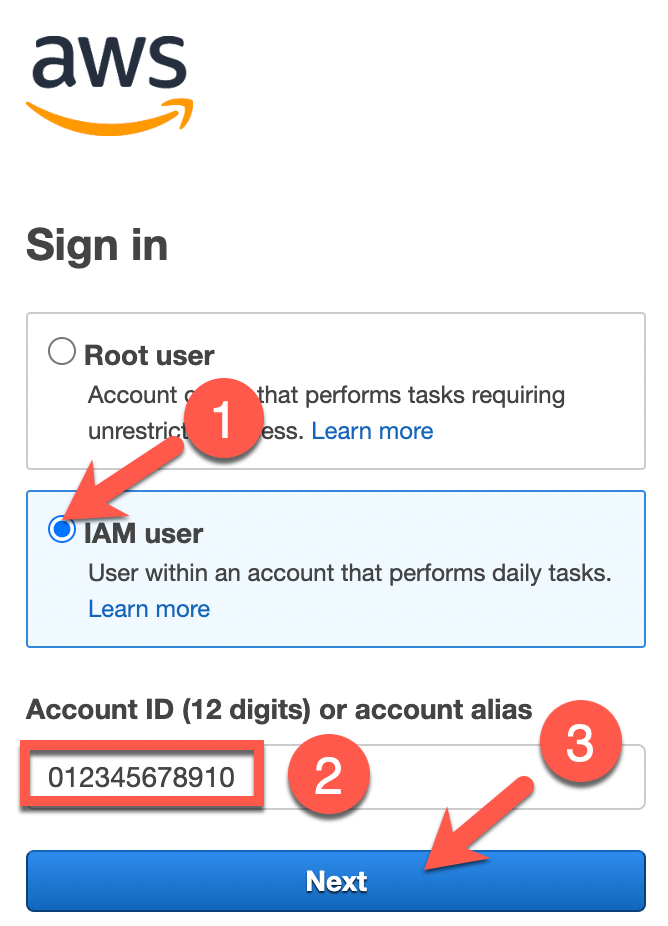
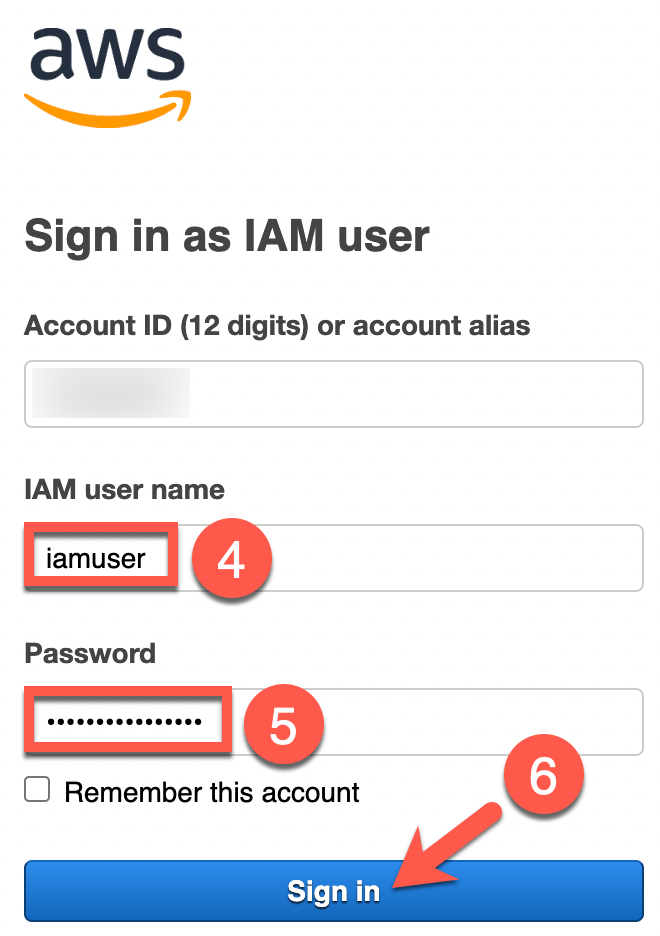
Select the IAM user radio button (1), enter your AWS account number of alias in the Account ID (12 digits) or account alias text field (2), and click the Next button (3). On the next page, enter your IAM username in the IAM user name text field (4), enter your IAM user's password in the Password text field (5), and click on the Sign in button (6).
-
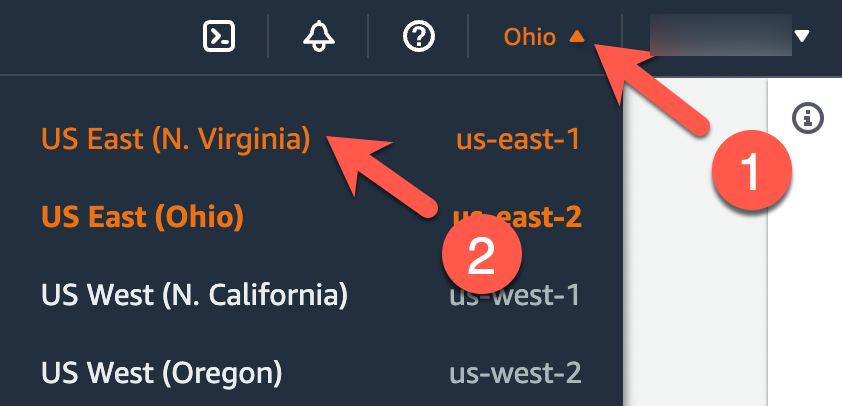
When you arrive at the AWS Management Console, ensure that you are currently interacting with the N. Virginia (us-east-1) region by taking a look at the top-right of the page. You should see N. Virginia. If you see a different region, click the down arrow next to the region's name (1) and select East US (N. Virginia (2).
-
Now that you are interacting with the N. Virginia (us-east-1) region, click on the icon near the top-right that looks like a command prompt to start a CloudShell session.

-
On the next page, you will see a banner that states Waiting for environment to run.... Wait a minute or two until you see a command prompt that looks similar to
[cloudshell-user@ip-10-1-82-127 ~]$(your hostname will vary).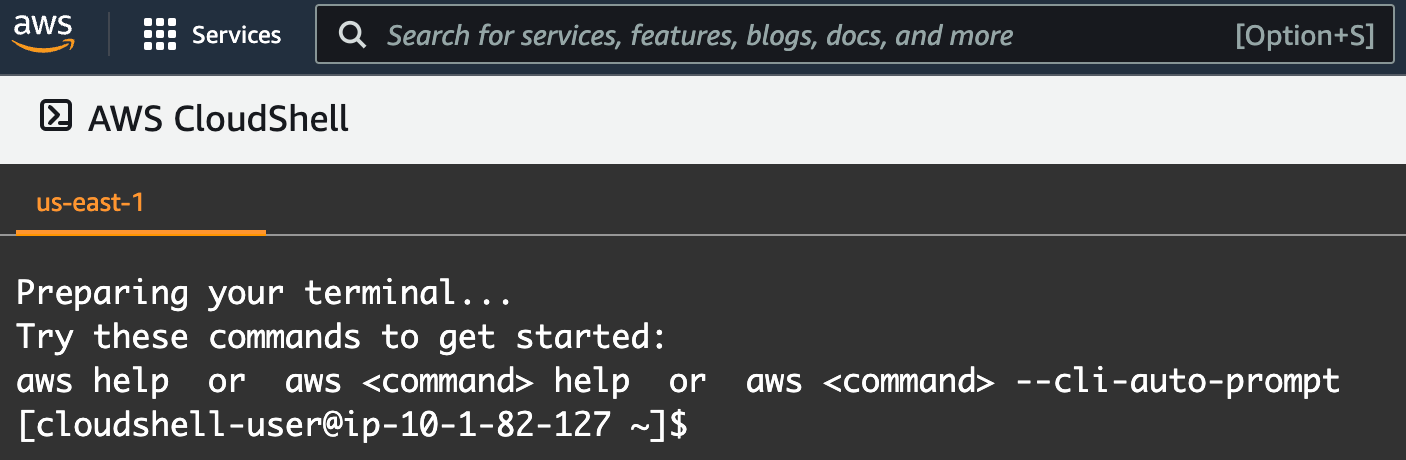
Note
Your CloudShell session will expire after roughly 20 minutes of inactivity. If this happens, simply attempt to type and the session should resume. If this does not work, refresh the page.
Challenge 2: Download Workshop Code
In order to rapidly set up some realistic targets in your environment that you will attack, as well as setup some of the more time-consuming resources to assist in the automated detection, there is some Infrastructure as Code (IaC) provided in this GitHub repository.
Now that you are in a CloudShell session, you will need to download this code in order to deploy these resources via AWS CloudFormation. But how to pull the code down to the session? That's easy! AWS provides git in their CloudShell environment!
Solution
-
Ensure that you are in your CloudShell session's home directory by running the following commands:
cd /home/cloudshell-user
pwd
Expected Result
/home/cloudshell-user -
Use
gitto clone the evidence-app source code.git clone https://github.com/bluemountaincyber/building-detections-awsExpected result
Cloning into 'building-detections-aws'... remote: Enumerating objects: 215, done. remote: Counting objects: 100% (215/215), done. remote: Compressing objects: 100% (166/166), done. remote: Total 215 (delta 82), reused 179 (delta 46), pack-reused 0 Receiving objects: 100% (215/215), 5.88 MiB | 17.70 MiB/s, done. Resolving deltas: 100% (82/82), done. -
Ensure that the code downloaded by running the following command:
ls -la /home/cloudshell-user/building-detections-aws/Expected Result
drwxrwxr-x 5 cloudshell-user cloudshell-user 4096 Mar 17 14:54 .
drwxr-xr-x 8 cloudshell-user cloudshell-user 4096 Mar 17 14:54 ..
-rw-rw-r-- 1 cloudshell-user cloudshell-user 4720 Mar 17 14:54 BuildingDetections.yaml
drwxrwxr-x 8 cloudshell-user cloudshell-user 4096 Mar 17 15:02 .git
-rw-rw-r-- 1 cloudshell-user cloudshell-user   24 Mar 17 14:54 .gitignore
drwxrwxr-x 2 cloudshell-user cloudshell-user 4096 Mar 17 15:02 scripts
drwxrwxr-x 3 cloudshell-user cloudshell-user 4096 Mar 17 14:55 workbook
Challenge 3: Deploy Workshop IaC Resources
Finally, you have all of the components needed to deploy the resources in your AWS account.
Use build.sh to deploy the IaC (which can be found in the scripts directory of the repo you just downloaded). Ensure that all worked properly by searching for the following AWS resources using the AWS CLI (also provided in CloudShell):
- A honey file named
password-backup.txt - An S3 bucket with a name beginning with
databackup-with a honey file placed inside calledpassword-backup.txt - Lambda function named
HoneyFileDetection - Security Hub is successfully deployed
Warning
If you already have Security Hub setup in your AWS account within the N. Virginia region (us-east-1), your deployment will fail. The failure will look like this:
Failed deployment
Failed to create/update the stack. Run the following command
to fetch the list of events leading up to the failure
aws cloudformation describe-stack-events --stack-name building-detections
If that happens, you can run the following commands after this failure and try again:
aws cloudformation delete-stack --stack-name building-detections
aws securityhub disable-security-hub
Solution
-
Run the
build.shscript located in the/home/cloudshell-user/building-detections-aws/scriptsdirectory. After roughly 2 minutes, it should complete./home/cloudshell-user/building-detections-aws/scripts/build.shSample Result
Waiting for changeset to be created.. Waiting for stack create/update to complete Successfully created/updated stack - building-detections -
Now, check that the resources listed above were deployed properly.
-
S3 bucket beginning with the name
databackup-and its contentsBUCKET=$(aws s3api list-buckets | jq -r '.Buckets[] | select(.Name | startswith("databackup-")) | .Name') aws s3 ls | grep $BUCKET aws s3 ls s3://$BUCKET/Sample result
2023-03-25 15:35:22 databackup-123456789010 2023-03-25 15:36:20 91 password-backup.txt -
Lambda function named
HoneyFileDetectionaws lambda get-function --function-name HoneyFileDetection --query Configuration.FunctionArn --output textSample result
arn:aws:lambda:us-east-1:123456789010:function:HoneyFileDetection -
Security Hub is successfully deployed
aws securityhub describe-hub --query HubArn --output textSample result
"arn:aws:securityhub:us-east-1:123456789010:hub/default"
-
Conclusion
Now that you have the resources in place, it's time to set up logging in the next exercise!